Downlix’s image mode collects the images on any web page so you can filter them and save them all at once. Here is how:
1. Switch to Image Mode and Open the Page
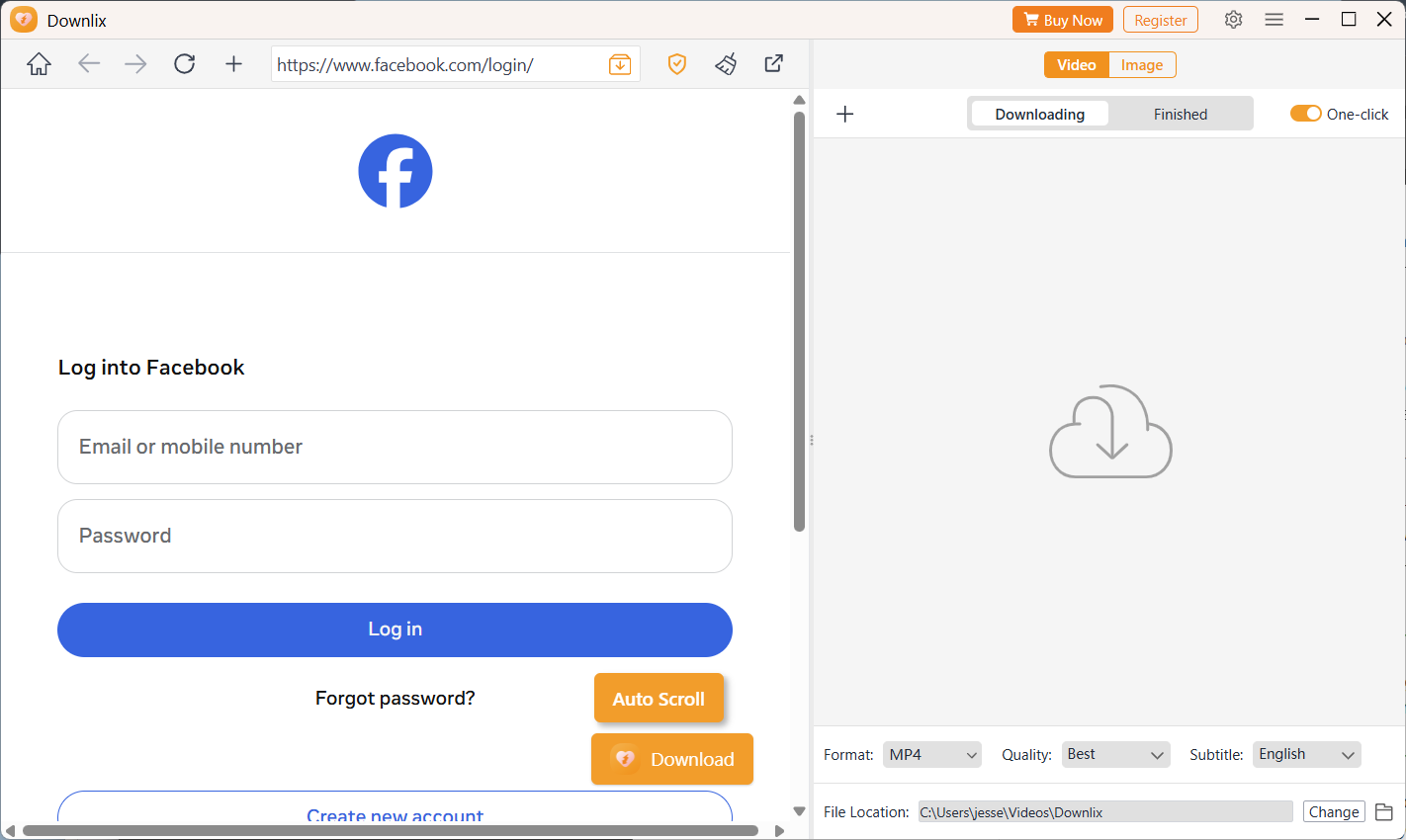
Click Image at the top of the download panel, then type or paste the page’s address into the built-in browser’s address bar. If the site needs an account, log in in the built-in browser first.
2. Scroll to Collect the Images
Downlix lists the page’s images in the right panel as they load. Many sites load more images as you scroll, so click Auto Scroll on the page and Downlix scrolls for you until it reaches the end.
3. Filter the Images
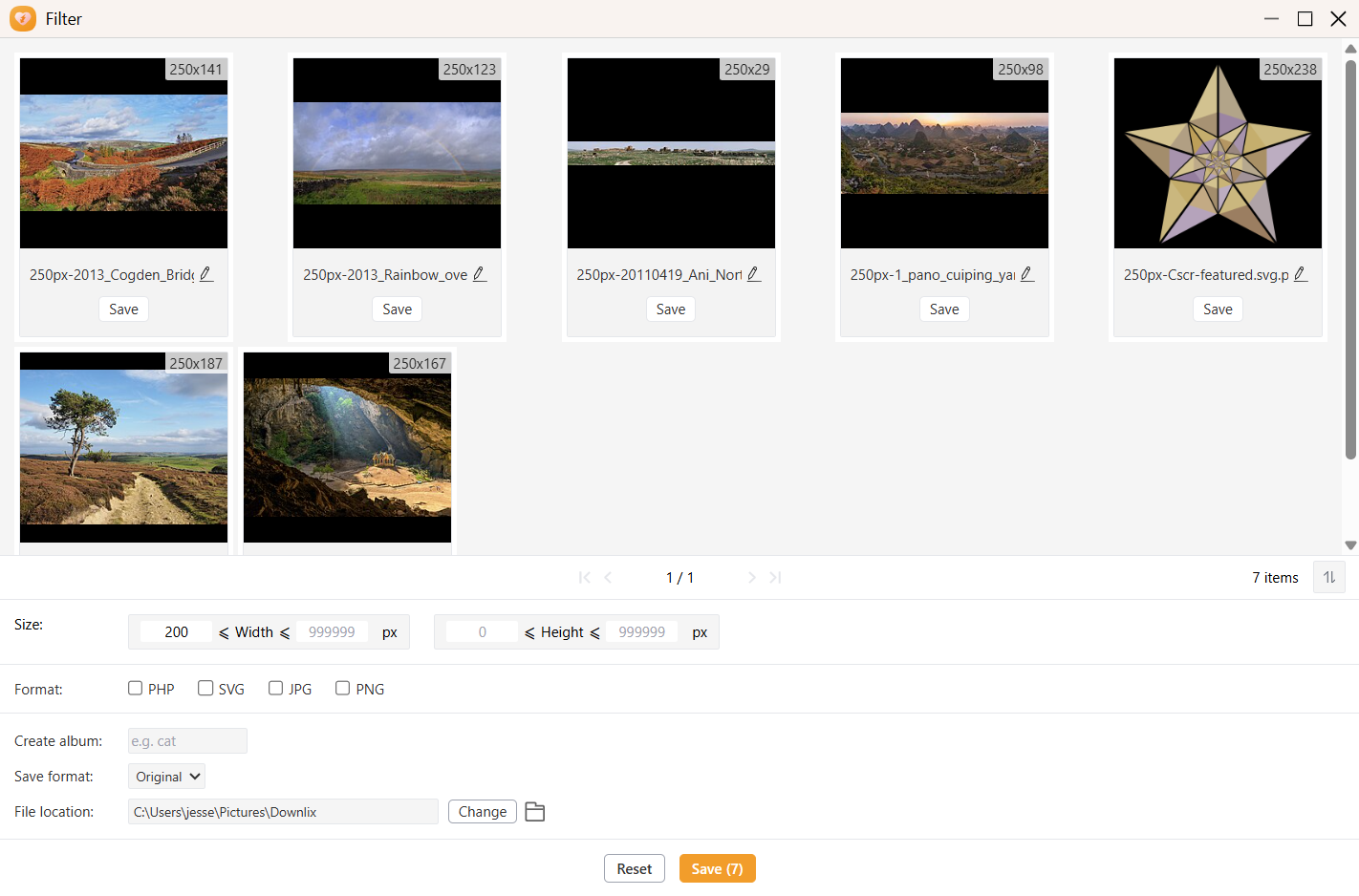
Use Image size to keep one size, or click Filter to set a minimum or maximum width and height and choose formats (JPG, PNG, SVG). Small icons and logos drop out, and only the photos you want remain.
4. Save the Images
Optionally type a name in Create album to save them into their own folder, and pick a Save format. Then click Save all, or Save under a single image.
5. Find the Downloaded Images
Images are saved to PicturesDownlix by default. Click the folder icon next to File location to open it, or Change to pick another folder.