Downlix downloads videos, audio and whole playlists from 10,000+ sites. Follow these steps to download in bulk:
1. Choose Format, Quality and Subtitles
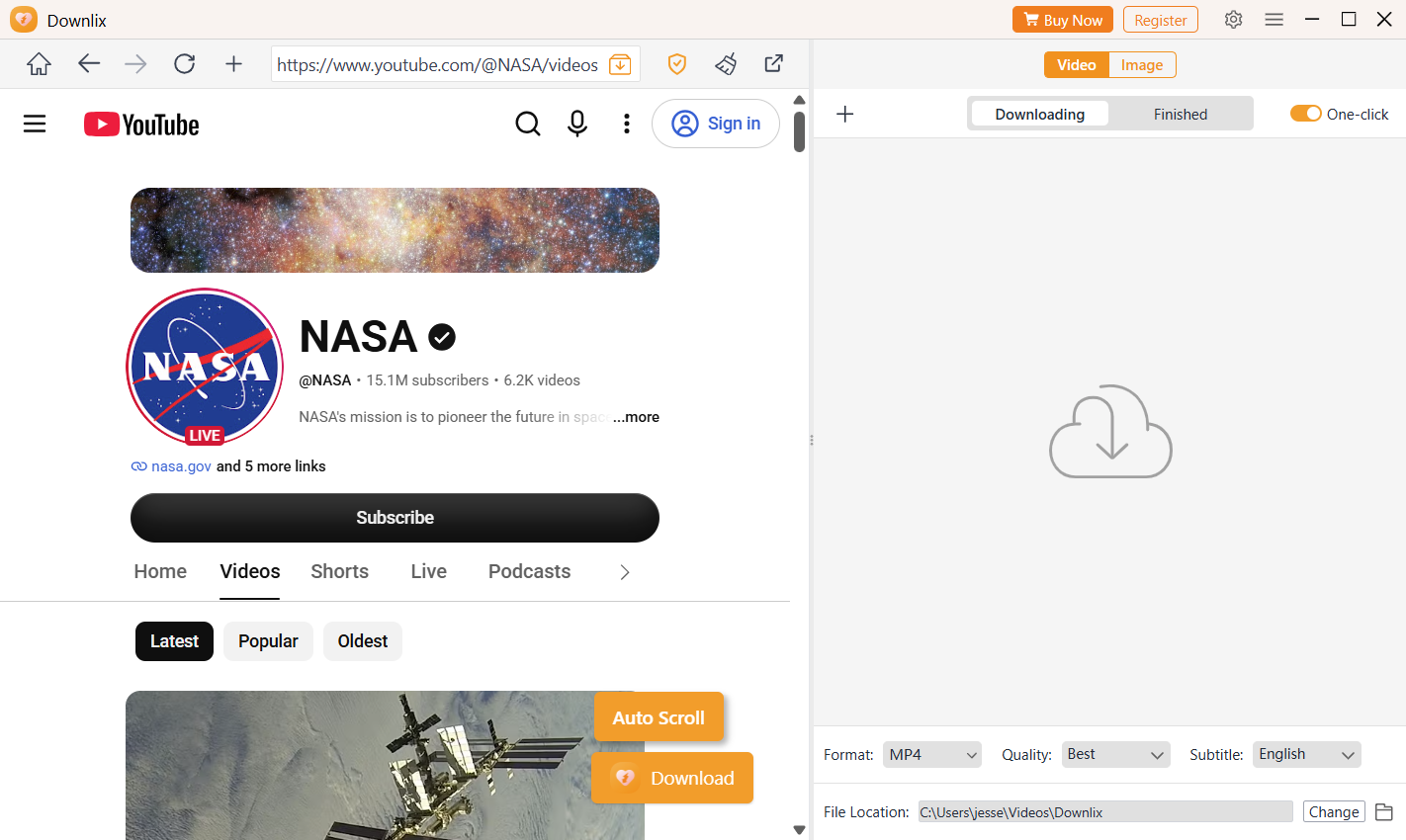
Make sure Video is selected at the top of the download panel. At the bottom, choose the Format (for example MP4, or MP3 for audio only), the Quality and the Subtitle language. Downlix uses these for every download.
With One-click on, a download starts straight away with these settings. Turn it off if you want to pick the quality for each video.
2. Open the Video in the Built-in Browser
Pick a site on the home page, or type the video’s address into the address bar. You can also paste a link with the + button in the download panel.
3. Click Download
Click the Download button on the page. The video joins the list under Downloading. Keep browsing and add more videos; Downlix downloads them one after another.
4. Download a Whole Playlist
Open or paste a playlist link. Downlix asks whether you want just this video or the whole playlist; choose the playlist, select the videos you want, and download them all at once.
5. Find the Downloaded Files
Finished downloads move to the Finished tab. Files are saved to VideosDownlix by default; click the folder icon next to File Location to open it, or Change to pick another folder.